Showing posts with label BAM. Show all posts

Thursday, April 25, 2013

Creating report based on External Data Source (Database table) – Oracle BAM


In Oracle BAM the reports can be created based on the external database table.This post will explain the steps required to build a simple report based on the external database table.
Create the External Database:
  • Login to Oracle BAM Start page and click on Architect button.


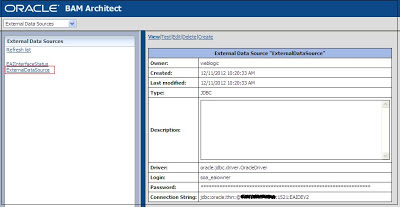
  • Select External Data Sources from the drop down list and click on the create button in the next page.

  • Provide the External Datasource Name and the database details and click on the Test button to test the External Data Source.

  • Click on Create Button and click on Continue.


Creating the Data object based on the External Data Source:
  • Select Data Objects from the drop down list and Click on Create Data Object
  • Enter the Data Object name and provide the folder in which the data object needs to be stored.
  • Select External Data Object check box and select the external data source created in the previous step and the database table from which the report needs to be created.
  • Click on Add field for all the fields that needs to be added into the data object (the fields that required for the report) from the table.


  • Click on Create Data Object and click on continue.
  • Click on Contents to see the data.


  • Click on the Layout to see the data object definition


Creating the report:
  • Login to Active Studio from the start page and click on Create New Report.
  • Select Single Tiled Report and select the report type as Streaming List
  • Select the ExternalDSDO and click on next


  • Select the required fields that need to be shown in the report and click on next.


  • Click on Change view properties and change the View Title as required and click on OK.

  • Click on the Save button to save the report.

########

Creating the reports based on the data from weblogic JMS queue – Oracle BAM


Oracle BAM supports the reporting based on the data from External Messaging Sources.
This post explains the steps to create a report based on the data from the weblogic Queue.
Create the data object:
Create a data object with required fields to populate the data from the JMS Queue (Refer the previous post for the steps to create the Data Object).Here I am creating the Employee data object with three fields.
 

Configure the External Messaging Source:
These steps configure the JMS queue and map the JMS data to the data object (Employee) created in the previous step.
  • Click on Architect button from the Start up page.
  • Select External Message Source from the drop down list.
  • Enter the name for the message source and also the JNDI Service provider URL, Queue connection factory name and Queue name.
  • Select the JMS Message Type as TextMessage.
  • Select the Data object name as Employee created in the previous step and also select the operation as Insert.

XML Formatting – Pre-Processing can be used to process the incoming xml message with XSLT (For this scenario I am not using any XSLT processing).
  • Enter the Message Element name as the parent element of the message.For my case the Message Element Name is EMPLOYEEDETAILS.
<?xml version="1.0" encoding="UTF-8"?>
<EMPLOYEEDETAILS xmlns="http://bamems.sample.com">
   <EMPNAME>Albin</EMPNAME>
   <EMPNO>24</EMPNO>
   <EMPAGE>27</EMPAGE>
</EMPLOYEEDETAILS> 
  •  Select Namespace Qualified checkbox and enter the name space value if the message is qualified with the name space. My case the name space is http://bamems.sample.com.
  • Select the Column value as Element Tag.
  • Select the data object the field name enter the corresponding XML tag name.

  • Click on save.
  • Post the sample data to the JMS queue and same can be verified in the Employee data object.
<?xml version="1.0" encoding="UTF-8"?>
<EMPLOYEEDETAILS xmlns="http://bamems.sample.com">
   <EMPNAME>Albin</EMPNAME>
   <EMPNO>24</EMPNO>
   <EMPAGE>27</EMPAGE>
</EMPLOYEEDETAILS>

Create the Report:
  • Create a report based on the Employee data object.

########

Send the reports to external email ids through Alerts - Oracle BAM server.


By default we can’t send the reports to an external email id’s from a BAM server, the reports only can be send to a users configured with Oracle BAM servers(through weblogic console).This post will explain how to enable the BAM server to send the reports to the external email ids.
Before following this post the email drivers details should be configured in UMS (through em console).
By default AlertActionAllowExternalEmail property in the BAMCommonConfig.xml file is set as false.
Change the value of AlertActionAllowExternalEmail property to true in the BAMCommonConfig.xml file to enable the external email feature. The BAMCommonConfig.xml file can be located in the following location BAM_DOMAIN_HOME/BAMDomain/config/fmwconfig/servers/BAMManagedServer/applications/oracle-bam_11.1.1/config.
 

Create an Alert to send the report to the External Email:

  • Login to the Architect window; select the Alert from the drop down list and click on Create New Alert.

  •  Click on Create New Rule

  •  Select the option as shown below (Change the action according to your requirement)
  • Click on select data field and select the data object field when that get changed the report needs to be send to the external email id.
  • Click on next and select the Action as shown below.
  • Click on the select report link and select the report that need to be send to the external email when the alert is fired.
  • Click on select user and enter the external email ids separated with semicolon as shown below
  • Update/insert the EMPNAME into the Employee data object from architect view.
          The below is the email sent the external email is.


########

Migrating the BAM objects across environments with the ANT script – Oracle BAM 11g

This post explains how to use the ANT script to migrate the BAM objects across the environments.The script can be run remotely from the client machine or from the server machine.
  • Create a folder BAMConfig and create two sub folders BAMObjects and config inside the BAMConfig folder
  • Copy the BAMICommandConfig.xml from $ORACLE_HOME/bam/config folder of the server to the config folder created in the above step.
  • Add the default user name and the password to the BAMICommandConfig.xml file
           <ICommand_Default_User_Name>weblogic</ICommand_Default_User_Name>
           <ICommand_Default_Password>hiyEbs0vwXPQrKh8yE7z3f7JVNhmLLEe+cR3bansiPc=</ICommand_Default_Password>

         Also verify the ADCServerPort - the BAM Server http listening port and   ADCServerName -  BAM Server host name properties.

Content of the configuration file:

<?xml version="1.0" encoding="UTF-8"?><BAMICommand>
<ADCServerPort>9001</ADCServerPort>
<ADCServerName>BAM Server hostname</ADCServerName>
<ICommand_Default_User_Name>weblogic</ICommand_Default_User_Name>
<ICommand_Default_Password>hiyEbs0vwXPQrKh8yE7z3f7JVNhmLLEe+cR3bansiPc=</ICommand_Default_Password>
<Communication_Protocol>t3</Communication_Protocol>
<SensorFactory>oracle.bam.common.statistics.noop.SensorFactoryImpl</SensorFactory>
<GenericSatelliteChannelName>invm:topic/oracle.bam.messaging.systemobjectnotification</GenericSatelliteChannelName>
</BAMICommand>

Default password should be encrypted else you will be receiving “ICommandEngine.MissingCredentials” error.

To encrypt the password configure the BAMICommandConfig.xml file in the $ORACLE_HOME/bam/config folder with the plain text password and run any standard icommand from the server (e.g $ORACLE_HOME/bam/bin/icommand -cmd export -type dataobject -name SampleDO -file C:\temp\SampleDO.xml) that will encrypt the password.
  • Create Export_BAM_Objects.xml file with the BAM export commands and place the same in BAMConfig folder created in the above step, the contents of the file look like below
<OracleBAMCommands>
   <!--import dataobjects-->
    <Export name="/Albin/BAMWebservice" type="dataobject" file="$BAM_PROJ_HOME$/BAMWebservice.xml"/>
    <Export name="/SampleDO" type="dataobject" file="$BAM_PROJ_HOME$/SampleDO.xml"/>
</OracleBAMCommands>
Configure the required export commands (exporting different type of objects) into this file.
  • Create Import_BAM_Objects.xml file with the BAM import commands and place the same in BAMConfig folder created in the above step, the contents of the file look like below
<OracleBAMCommands>
   <!--import dataobjects-->
   <Import file="$BAM_PROJ_HOME$/BAMWebservice.xml"/>
</OracleBAMCommands>
Configure the required import commands into this file.
  • Create the BAMBuild.xml file with the following contents and place the same in the BAMConfig folder created in the above step.
<project name="BAMMigrationProject" basedir="." default="config">
   <!--import the property file-->
   <property environment="env"/>
   <property name="src.dir" value="."/>
   <property name="proj.home" value="${env.BAM_PROJ_HOME}"/>
   <property name="oracle.home" value="${env.ORACLE_HOME}"/>
   <property name="oracle.common.home" value="${env.ORACLE_COMMON_HOME}"/>
   <property name="bam.core.lib.dir" value="${env.ORACLE_HOME}/bam/modules/oracle.bam_11.1.1"/>
   <property name="bam.tp.lib.dir" value="${env.ORACLE_HOME}/bam/modules/oracle.bam.thirdparty_11.1.1"/>
   <property name="dms.lib.dir" value="${env.ORACLE_COMMON_HOME}/modules/oracle.dms_11.1.1"/>
   <!--BAM Classpath required by icommand application-->
   <path id="bamClasspath">
      <fileset file="${bam.core.lib.dir}/oracle-bam-icommand.jar"/>
      <fileset file="${bam.core.lib.dir}/oracle-bam-common.jar"/>
      <fileset file="${bam.core.lib.dir}/oracle-bam-adc-ejb.jar"/>
      <fileset file="${dms.lib.dir}/dms.jar"/>
      <fileset file="${bam.tp.lib.dir}/jgroups-core.jar"/>
      <fileset file="${bam.tp.lib.dir}/xstream-1.3.1.jar"/>
      <fileset file="${bam.tp.lib.dir}/commons-codec-1.3.jar"/>
      <fileset file="${oracle.home}/../wlserver_10.3/server/lib/weblogic.jar"/>
      <fileset file="${oracle.common.home}/modules/org.jaxen_1.1.1.jar"/>
   </path>
   <!--export BAM DOs through icommand-->
   <target name="export" description="Export BAM dataobjects and reports" depends="config">
    <delete dir="${basedir}/BAMObjects" includeemptydirs="true" includes="*/**"></delete>
      <java classname="oracle.bam.icommand.Application" fork="true" dir="${src.dir}" classpathref="bamClasspath">
         <sysproperty key="oracle.bam.debug" value="true"/>
         <arg value="-CmdFile"/>
         <arg value="${basedir}/Export_BAM_Objects.xml"/>
      </java>
   </target>
   <!--import BAM DOs through icommand-->
   <target name="import" description="Import BAM dataobjects and reports" depends="config">
      <java classname="oracle.bam.icommand.Application" fork="true" dir="${src.dir}" classpathref="bamClasspath">
         <sysproperty key="oracle.bam.debug" value="true"/>
         <arg value="-CmdFile"/>
         <arg value="${basedir}/Import_BAM_Objects.xml"/>
      </java>
   </target>
   <!--Modify bam icommand files-->
   <target name="config">
       <!--replace $project.home$ with the actual project directory inside the command file-->
      <replace file="Export_BAM_Objects.xml" token="$BAM_PROJ_HOME$" value="${basedir}/BAMObjects"/>
      <replace file="Import_BAM_Objects.xml" token="$BAM_PROJ_HOME$" value="${basedir}/BAMObjects"/>
   </target>
</project>
  • To run the scripts from the server copy the BAMConfig folder with all the contents to the server.Set the environment variables ORACLE_HOME and ORACLE_COMMON_HOME(e.gORACLE_HOME=/oracle/Middleware/Oracle_SOA1;export ORACLE_HOME;ORACLE_COMMON_HOME=oracle/Middleware/oracle_common;export ORACLE_COMMON_HOME) and also set the PATH to ANT(e.g export PATH=$PATH:$ORACLE_HOME/../modules/org.apache.ant_1.7.1/bin)
         Execute the ant scripts
          ant –f BAMBuild.xml export

        The objects will be exported based on the commands in the Export_BAM_Objects.xml as an xml file   to the BAMObjects folder
         ant –f BAMBuild.xml import

           The xml file contents will be imported to BAM based on the commands in the Import_BAM_Objects.xml
  • To run the script from the client machine the JDeveloper with the same version as the BAM server should be installed.Set the ORACLE_HOME (e.g C:\EnvSetup\MiddlewareBlog\jdeveloper) and ORACLE_COMMON_HOME(e.g C:\EnvSetup\MiddlewareBlog\oracle_common) environment variables and also set the PATH to ANT
        Copy the commons-codec-1.3.jar file from the server location   ${env.ORACLE_HOME}/bam/modules/oracle.bam.thirdparty_11.1.1 to the <JDEV_HOME>\ jdeveloper\bam\modules\oracle.bam.thirdparty_11.1.1

########